
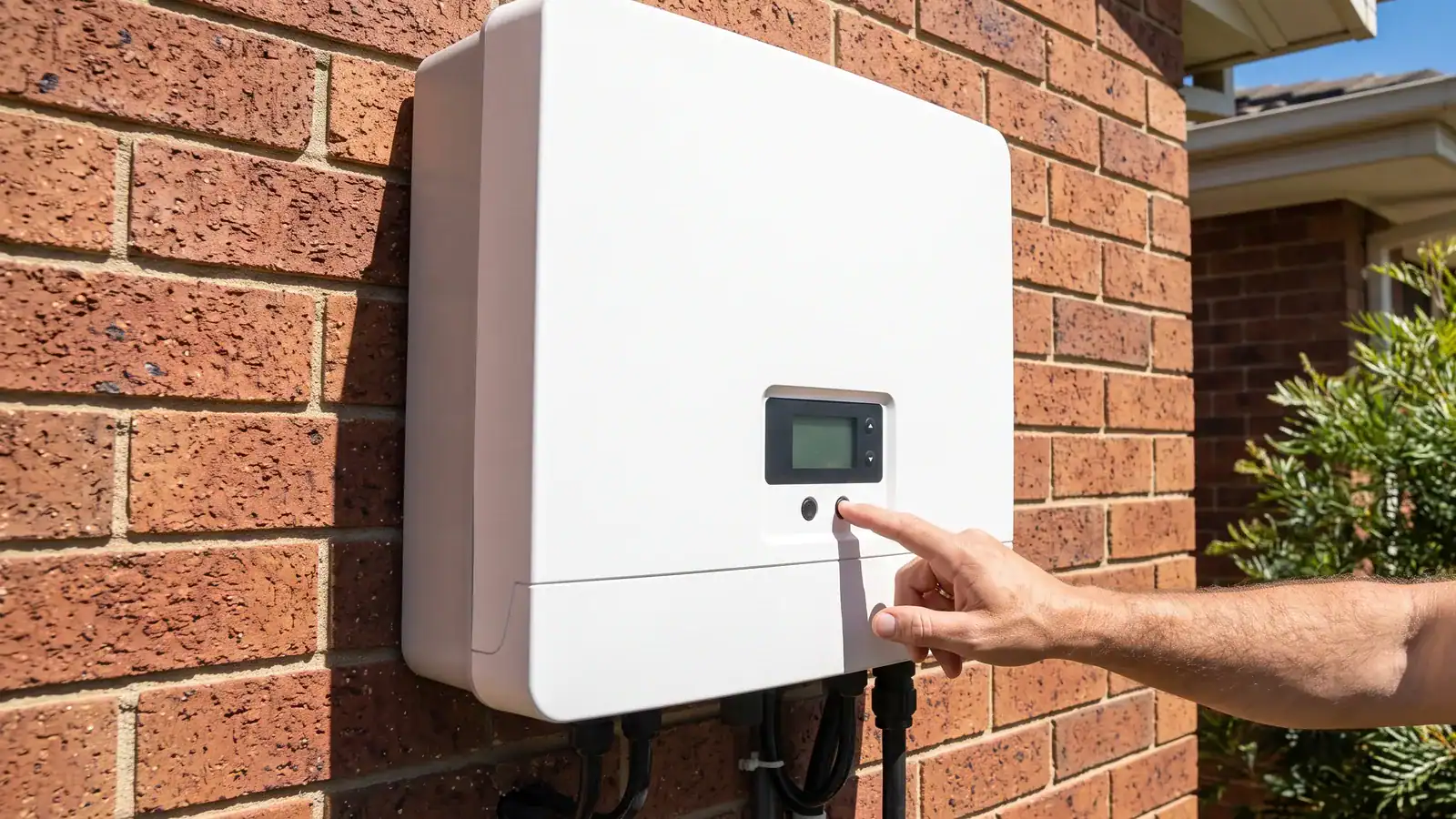
To reset a Fronius solar inverter, follow the shutdown label on your system: normally AC off, then DC off, wait until the unit powers down, then restart in the labelled order. Check the battery and backup instructions first if your system has storage.
A power cycle can help an unresponsive display or communication problem. It will not repair faulty wiring, restore a missing grid supply or create solar power when there is too little sunlight.
The guide covers Primo and Symo SnapINverters, GEN24 models, the difference between restarting and restoring settings, and the fault messages that need an installer. Use the model name on your rating plate rather than assuming every unit has the same controls.
Already checked the basics? Read our guides on troubleshooting a beeping or red-light inverter or checking whether your solar inverter is actually working.
When You Might Need to Reset a Fronius Inverter
You do not need to reset a normally operating inverter. Identify the symptom first, because a stopped inverter and an offline monitoring portal can have different causes.
The most common triggers include:
- Error or state codes on the display, such as State 107 (no AC grid detected) or State 307 (DC voltage too low)
- A red or orange LED that stays lit after sunrise, with no power generation showing
- Production drops to zero mid-day even though the sun is out and panels are clean
- Grid outage recovery, where the inverter has not reconnected after power returns
- WiFi or Solar.web monitoring has stopped updating, often after a modem restart or firmware change
- An unresponsive local web interface after checking your browser and network connection. Do not interrupt an update that is still running.
If a fault returns after a restart, record it and arrange solar maintenance and repairs for a recurring inverter fault. The cause may be a grid, panel, connection or inverter problem; a repeat warning alone does not prove hardware failure.
Before You Start
Before operating a switch, read the system shutdown label and identify your inverter model. If the label is missing, illegible or does not match the equipment, ask your installer for the correct procedure.
- Choose daylight for troubleshooting generation. Low light can explain a standby message. Battery-equipped systems can remain powered at night, so darkness does not prove the unit is electrically isolated.
- Locate your AC isolator. This is usually on or near your switchboard, labelled “Solar Supply Main Switch” or “Inverter AC Isolator.”
- Find the DC isolator. It sits on or directly below the inverter itself, labelled “PV Array DC Isolator.” Some systems have two.
- Check for a battery or backup supply. A GEN24 Plus or Symo Hybrid can need additional shutdown steps. Use the battery manufacturer’s instructions and the installer’s system procedure; do not disconnect cables or open covers.
- Record the fault before restarting. Photograph the code, LED state and power reading, and note whether the grid is available and the weather is wet or overcast. These details help your installer if the message returns.
Stop if there is damage: Do not operate wet, cracked, scorched or unusually hot equipment, or attempt a reset during a thunderstorm. Keep clear and call a licensed electrician; never open the inverter, unplug DC connectors or climb onto the roof.
How to Reset a Fronius Inverter Step by Step
A soft reset means a power cycle, with the existing settings retained. The sequence below is for a grid-connected system without a battery, where it matches the installed shutdown label; the manufacturer’s SnapINverter restart guidance specifies AC off, DC off and about 30 seconds with all LEDs out.
- Switch off the AC isolator. Go to your switchboard and flip the solar supply main switch to the off position.
- Switch off the DC isolator. Move to the inverter and turn the DC isolator to “O” (off). If your system has two DC isolators, switch both off.
- Wait until the inverter shuts down. Allow about 30 seconds, or the longer interval on your system label, and check that the display and LEDs are off. If lights remain on, stop and ask your installer rather than treating the unit as isolated.
- Follow the labelled restart order. Where your system specifies DC first, turn its accessible DC isolator to “I” (on). Do not operate any switch you cannot identify confidently.
- Switch the AC isolator back on. Return to your switchboard and flip the solar supply main switch on.
- Allow the startup checks to finish. Watch for normal operation and a power reading in daylight. Reconnection depends on sunlight, grid conditions and the model; avoid cycling the switches again while it starts.
A green operating indicator is useful, but confirm the actual generation reading too. The GEN24 operating manual distinguishes the operating LED from the communications LED, so a connection light alone does not establish that panels are producing power.
If you also lost WiFi connectivity, check our guide on reconnecting your Fronius inverter to WiFi.
Fronius Model Differences When Resetting
The Primo and Symo names appear on both SnapINverter and GEN24 products. Check the full model name, because the display, monitoring controls and battery procedure differ.
| Detail | Primo / Symo SnapINverter | Primo / Symo GEN24 and GEN24 Plus |
|---|---|---|
| Status check | Front display, state code and operating LEDs | Operating LED and local interface or Solar.web notifications |
| DC switch | Locate the labelled external switch on your installation | Locate the labelled switch; do not assume its position from another model |
| Battery or backup | Standard Primo/Symo differs from Symo Hybrid | Storage and backup installations require their own shutdown procedure |
| Restart wait | Follow the shutdown label and allow all lights to go out | Follow the system and battery instructions, including their waiting periods |
| Local access | Datamanager access point activated through Setup | Access point activated using the optical sensor |
The model name and serial number on the rating plate are the most useful details to give your installer. For a GEN24 with storage, use the manufacturer’s GEN24 system-restart guidance, which includes a battery-specific demonstration, rather than applying the inverter-only steps unchanged.
How to Factory Reset a Fronius Inverter
A factory reset changes configuration; a power cycle simply restarts the equipment. “Hard reset” is used loosely online, so check whether someone means switching power off or erasing settings before following their instructions.
- Use a power cycle for an unresponsive unit when the system label permits it.
- Use network settings to reconnect after a router change.
- Use password recovery when the problem is a forgotten login.
- Ask your installer before restoring configuration or changing export controls.
Factory-reset options differ by model. The manufacturer documents a Data-/Hybridmanager reset for SnapINverters, while GEN24 has separate configuration restore options; resetting monitoring equipment and resetting inverter configuration are different operations.
The Primo GEN24 manual’s factory-settings section describes “All settings” and “All settings without network”. Both retain the country setup, and the second also retains network settings, so choose the option with your installer.
Have your installer confirm which component needs resetting and save the configuration first. After a restore, they should check monitoring, battery operation and any site-specific export controls before considering the job complete.
A forgotten password does not require a factory reset. Avoid erasing settings just because one login no longer works.
For a GEN24 Customer login, generate a PIN using “Forgot password?” on the local interface, then the Solar.web system owner can use Settings → Components → Actions → Reset Customer Password.
The recovery key depends on that PIN remaining valid; leave the local screen open and follow the official GEN24 password-recovery instructions.
SnapINverter Datamanager recovery uses Admin/Service roles, so do not assume the GEN24 menu names apply. Service or Technician access belongs with trained personnel; contact your installer if the owner recovery option is unavailable.
If you have forgotten the Solar.web account password itself, use the password-recovery option at Solar.web sign-in.
A power cycle will not change account credentials or reconnect an inverter to a new router password.
Fronius Error Codes That a Reset Can Fix
The codes below belong to different model families. The manufacturer’s SnapINverter state-code explanations describe low solar input and grid loss; a restart cannot resolve low solar input or a missing grid supply.
| State code and family | Meaning | What to do |
|---|---|---|
| 107 (SnapINverter) | No stable AC grid detected | Check grid availability; persistent warnings need an installer. |
| 306 / 307 (SnapINverter) | PV power / DC voltage too low | May be normal in low light; check the labelled DC switch is on. |
| 509 (SnapINverter) | Insufficient PV power for 24 hours | Check sunlight and switch position; investigate persistent lack of generation. |
| 1024 (GEN24) | A changed setting requires a restart | The restart occurs automatically; no manual action is normally required. |
| 240–243 (SnapINverter) | Arc detection triggered | Contact your installer for inspection; do not keep resetting. |
| 475 / 502 (SnapINverter) | Low DC insulation resistance | Contact your installer; rain can reveal a panel or cabling problem. |
GEN24 code 1024 is an automatic restart notification, not an instruction to keep operating the isolators. If a fault returns after one correctly performed restart, record the exact code and seek advice; do not repeatedly reset a protection warning.
When a Reset Will Not Fix the Problem
A reset is a software reboot. It cannot fix physical damage, worn-out components, or wiring faults. These situations need a qualified solar technician:
- Arc detection errors (state 240-243) point to a potential fire risk in the DC wiring or panel connectors. Do not ignore these.
- Insulation resistance warnings (state 475/502) mean moisture or degradation has compromised the DC side insulation. Common after heavy rain or flooding.
- Burn marks, melted plastic, or a burnt smell around the inverter or DC isolator.
- Recurring failures or deteriorating performance need diagnosis before deciding on the cost of replacing a faulty inverter. Age alone does not establish that the unit must be replaced.
- A persistent fault indication after restart needs the model’s state code checked. Grid and array faults can also stop generation; a red light does not identify an internal hardware failure on its own.
Contact SolaXs about an inverter that will not restart and provide your model, serial number and fault photo. Homeowners across our Mid North Coast solar service locations can check the areas we cover before arranging assistance.
SolaXs provides local solar assistance. Keep your shutdown instructions with the system paperwork so you have the right sequence available when a fault occurs.
Frequently Asked Questions
Restarting and checking operation
How long does a Fronius inverter take to restart after a reset?
Allow a few minutes for startup and grid checks, following the time stated in your system instructions. The unit must have adequate solar input and an acceptable grid supply before normal feed-in can resume.
Can I reset my Fronius inverter at night?
Daylight is more useful when checking whether generation has recovered. A solar-only system may have too little DC input to generate at night, while a hybrid system may remain powered by other supplies; use its own shutdown procedure.
Will resetting my Fronius inverter delete my monitoring data?
A normal power cycle retains configuration and does not erase already uploaded Solar.web history. Recording may pause while the inverter or network is offline, so check that new readings resume after startup.
What does a solid red light mean on a Fronius inverter?
Read the model-specific fault message before deciding what to do. Do not restart equipment showing arc or insulation warnings, physical damage or water ingress; contact your installer and keep a photo of the indication.
Settings, faults and monitoring
How do I factory reset my Fronius inverter?
First identify whether the problem involves inverter settings, its Datamanager or a forgotten password. Ask your installer to select the appropriate restore procedure and preserve site configuration.
Do I need an electrician to reset my Fronius inverter?
You can operate accessible, undamaged user switches according to the system label if you understand the procedure. Leave opening covers, electrical testing, cable disconnection and configuration changes to qualified personnel, and ask for help if the instructions are unclear.
How often should I restart my solar inverter?
A normally operating system needs no scheduled restart. Repeatedly needing a reboot warrants investigation even if generation returns each time; record when the problem occurs and whether it affects production or only monitoring.
Why is my Fronius inverter not restarting after a power outage?
The inverter needs a suitable grid supply before reconnecting, and startup checks can delay feed-in after power returns. Check the displayed status and accessible switch positions; if a breaker trips again or the warning persists, contact your installer rather than repeatedly resetting it.
What does state code 307 mean on a Fronius inverter?
On a SnapINverter, code 307 means the PV voltage is too low. Low light can explain it; if the panels have daylight and the labelled DC switch is on but the warning persists, ask your installer to investigate.
Why is Solar.web offline after a reset?
An offline portal does not by itself prove generation has stopped. Compare the inverter’s local status with monitoring, then check your router and network settings; a restart retains the old network credentials and cannot substitute for entering a new WiFi password.