
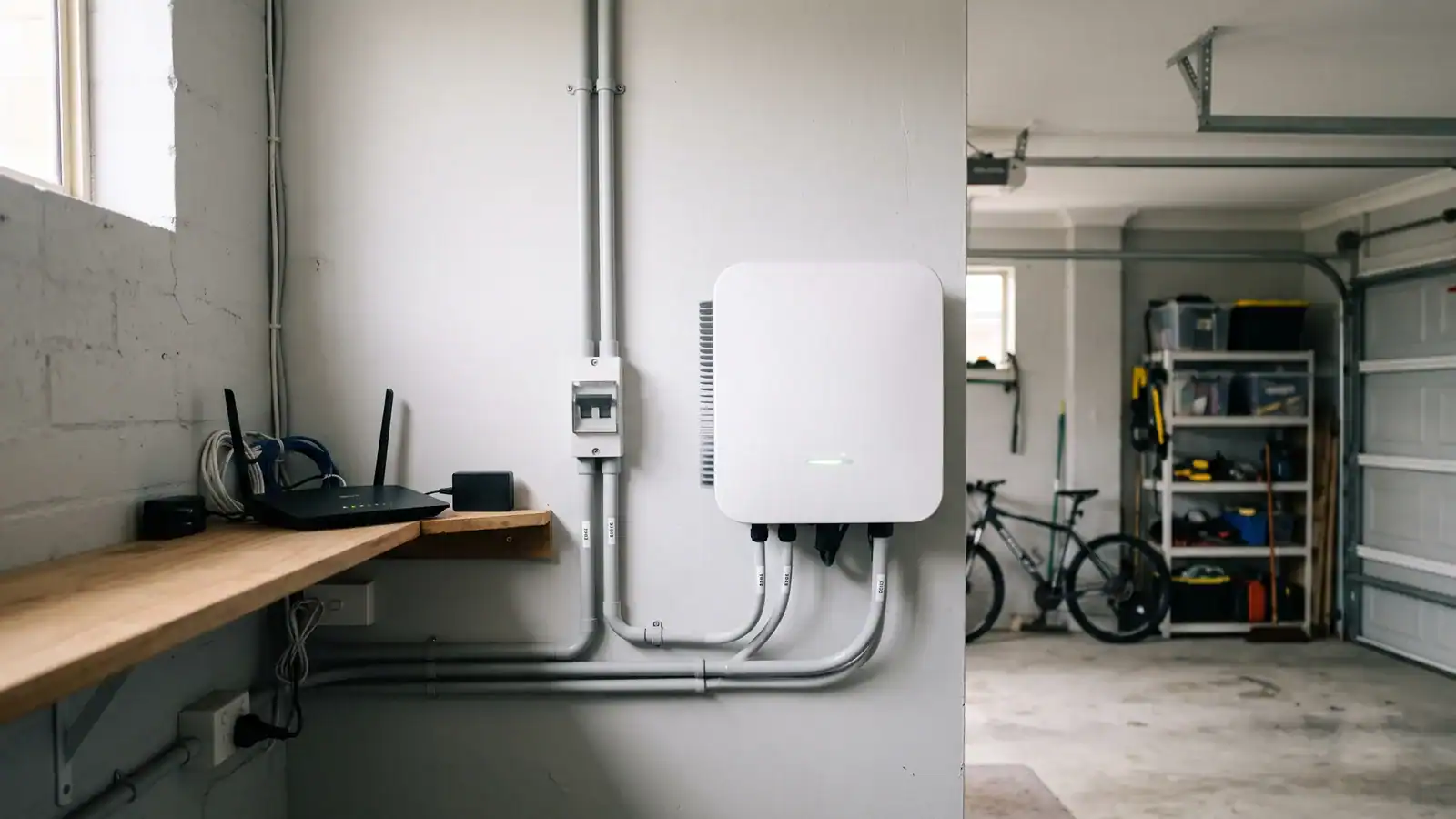
The address 10.10.100.253 is the built-in WiFi setup page on your GoodWe inverter. If you have just had solar panels installed or changed your home WiFi password, this is where you connect the inverter to your network so it can report back to the monitoring portal.
This guide walks through the full setup process step by step, covers the most common reasons the 10.10.100.253 page will not load, and explains what to check once your GoodWe inverter is online. Written for homeowners, not electricians.
If your inverter was recently installed by SolaXs, your installer will normally complete the WiFi setup before leaving. This guide is for when you need to reconnect after a router change, a new internet provider, or a WiFi password update.
What Is 10.10.100.253
Every GoodWe inverter with a WiFi module broadcasts its own small WiFi network. When you connect to that network and open http://10.10.100.253 in a browser, you land on the inverter’s configuration page.
- It is not a public website. You can only reach it while connected to the inverter’s own WiFi signal.
- The page lets you tell the inverter which home WiFi network to join and what the password is.
- Once connected, the inverter sends generation data to the SEMS Portal for monitoring.
- Some older models use 10.10.100.254 instead. If .253 does not load, try .254.
What You Need Before You Start
Gather these before you walk out to the inverter. It saves a trip back inside.
- Your home WiFi password (the one printed on your router or the one you changed it to)
- A phone, tablet, or laptop with WiFi and a web browser
- The inverter powered on (the AC isolator on the switchboard must be ON and the DC isolator on the inverter itself must be ON)
- Your WiFi running on 2.4 GHz (more on this below)
Check your WiFi band first. GoodWe WiFi modules only detect 2.4 GHz networks. If your router broadcasts a single combined network for both 2.4 GHz and 5 GHz, the inverter may not find it. See the 2.4 GHz section below for how to fix this.
Step-by-Step WiFi Setup via 10.10.100.253
This is the browser method. It works on any phone, tablet, or laptop without installing an app.
- Go to your phone or laptop WiFi settings and look for a network called
Solar-WiFifollowed by a string of numbers (the last eight digits of the inverter’s serial number). Example:Solar-WiFiG3012345. - Connect to that Solar-WiFi network. The default password is
12345678. - Open a web browser (Chrome, Safari, or Firefox) and type
http://10.10.100.253into the address bar. Make sure you includehttp://and nothttps://. - Log in with username
adminand passwordadmin. - Click Start or Wizard on the configuration page. The inverter will scan for available WiFi networks.
- Select your home WiFi network from the list.
- Enter your home WiFi password and click Complete or Save.
- Wait about 30 seconds. The inverter will disconnect from its own Solar-WiFi network and connect to your home network. Your phone will automatically reconnect to your home WiFi.
Once connected, the inverter’s WiFi LED should show a solid light. If it keeps flashing, the connection did not complete. Run through the troubleshooting steps below.
What to Do When 10.10.100.253 Will Not Load
This is where most people get stuck. The page refuses to appear, the browser shows an error, or it just spins. Work through these checks in order.
| Problem | Fix |
|---|---|
| Browser shows “site can’t be reached” | Check you are connected to the Solar-WiFi network, not your home WiFi. Your phone may have auto-reconnected to your home network. |
| Page loads but looks broken or shows a security warning | You typed https:// instead of http://. The inverter does not support HTTPS. Use http://10.10.100.253 exactly. |
| Connected to Solar-WiFi but page still won’t load | Turn off mobile data on your phone. When mobile data is on, your phone may route web traffic through 4G/5G instead of the inverter’s WiFi. |
| Solar-WiFi network does not appear at all | Power cycle the inverter. Turn off the AC isolator, wait 30 seconds, turn it back on. The WiFi module takes about 60 seconds to broadcast after restarting. |
| Login page appears but admin/admin is rejected | The password may have been changed during a previous setup. Try resetting the WiFi module by holding the reset button on the module for 10 seconds. |
| Home WiFi network not showing in the scan | Your router is broadcasting on 5 GHz only. See the 2.4 GHz section below. |
If none of these steps resolve the issue, the WiFi module itself may need replacing. Contact your installer or get in touch with SolaXs for a diagnosis.
The 2.4 GHz WiFi Requirement
GoodWe WiFi modules only support 2.4 GHz networks. They cannot see or connect to 5 GHz networks. This catches a lot of homeowners off guard, especially with newer routers that default to a single combined network name for both bands.
- Telstra Smart Modem Gen 2 and Gen 3: Log in at 192.168.0.1, go to WiFi settings, and enable “Separate 2.4 GHz and 5 GHz networks.” This gives each band its own name so the inverter can find the 2.4 GHz one.
- NBN-supplied routers (TP-Link, Netcomm): Look for “Band Steering” or “Smart Connect” in the WiFi settings and turn it off. Then set separate SSIDs for each band.
- Mesh systems (Google Nest, TP-Link Deco): Some mesh routers do not allow band splitting. As a workaround, create a 2.4 GHz-only guest network and connect the inverter to that.
Once the inverter is connected and working on 2.4 GHz, you can re-enable band steering on your router if you prefer a single network name for your other devices. The inverter remembers the credentials and stays connected.
Setting Up the SEMS Portal After WiFi Connection
WiFi setup gets the inverter online. The SEMS Portal is where you actually monitor your solar production, check daily output, and spot problems early.
- Download the SEMS Portal app from the App Store or Google Play.
- Create an account (or log in if your installer already set one up).
- Tap Add Plant and enter your inverter’s serial number. You will find this on the sticker on the side of the inverter.
- Give the plant a name (your address works fine) and save.
- Wait 10 to 15 minutes. The portal pulls data from the inverter over WiFi. Once you see generation figures appearing, the connection is working.
If data does not appear after 30 minutes, double check the inverter’s WiFi LED is solid (not flashing). A flashing LED means the inverter lost the WiFi connection and you will need to repeat the setup.
GoodWe WiFi LED Status Lights
The small LED on the WiFi module (or on the front panel of newer models) tells you the connection status at a glance.
| LED State | What It Means |
|---|---|
| Solid green | Connected to your home WiFi and communicating with SEMS Portal |
| Flashing green | Searching for a WiFi network or attempting to connect |
| Solid red | WiFi module has power but is not connected to any network |
| Off | WiFi module is not receiving power or is not installed |
If the LED is off entirely, check that the WiFi module is properly seated in its slot on the inverter. On older models with an external WiFi dongle, make sure the USB-style connector is pushed in firmly.
Common Questions About GoodWe WiFi Setup
What is the default login for 10.10.100.253?
Username: admin. Password: admin. These are the factory defaults for the web configuration page. The Solar-WiFi network itself uses 12345678 as its default password.
Why can I not access 10.10.100.253?
The most common reason is that your phone or laptop is connected to your home WiFi instead of the inverter’s Solar-WiFi network. Disconnect from your home network, connect to Solar-WiFi, disable mobile data, and try again. Also make sure you are using http:// and not https://.
Does GoodWe work with 5 GHz WiFi?
No. GoodWe WiFi modules only support 2.4 GHz. If your router runs both bands under one network name, you will need to split them or create a 2.4 GHz guest network.
How do I reconnect after changing my WiFi password?
The same process. Connect to the Solar-WiFi network, open http://10.10.100.253, log in, and enter your new home WiFi password. The inverter does not remember the old one automatically.
How long before the SEMS Portal shows data?
Usually 10 to 15 minutes after the WiFi connection is established. If it takes longer than 30 minutes, check the WiFi LED on the inverter. A flashing light means the connection dropped.
Can I change the admin password on 10.10.100.253?
You can change the Solar-WiFi network password through the configuration page. The admin/admin login credentials cannot be changed on most firmware versions.
What is the difference between the WiFi kit types?
Newer GoodWe inverters have built-in WiFi (WiFi-F). Older models use an external WiFi dongle (WiFi-D) that plugs into the bottom of the inverter. Both use the same 10.10.100.253 setup process.
Do I need to set up WiFi for my solar to work?
No. Your solar system generates power whether WiFi is connected or not. WiFi is only for monitoring. Without it, you cannot see production data in the SEMS Portal or get alerts if something goes wrong.
Need Help With Your Solar Inverter
If you have tried the steps above and your GoodWe inverter still will not connect, the WiFi module may need replacing or the inverter firmware may need updating. Both are quick jobs for a qualified solar electrician.
SolaXs is a CEC-accredited solar installer on the Mid North Coast with over 25 years of experience. We service and support GoodWe inverters across Port Macquarie, Coffs Harbour, Taree, and surrounding areas. Contact us if you need a hand.